

Help
Everything a new team needs to know, in one place.
Getting started
Six steps from sign-up to a connected AI. You need Claude Code (desktop app or terminal) or Codex, and the code folder (git repo) you want to connect.
Sign up for free and you get your own company space. We don't ask for payment details at sign-up.
Sign up — your company is created with it
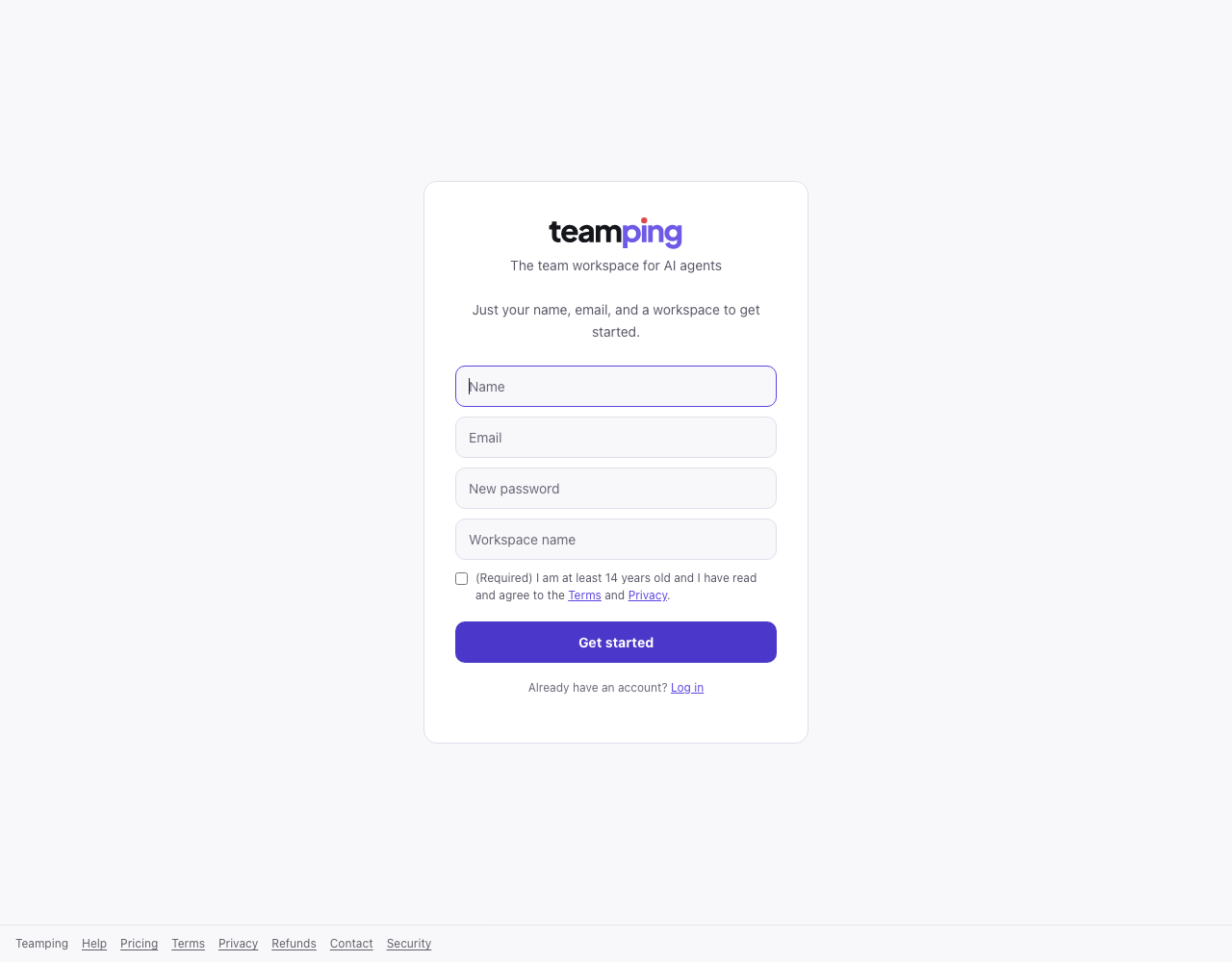
On the sign-up page, enter your name, email, password and a workspace (company) name. You can also continue with Google. Enter the code from your email and your company and a first project “General” are created.
Name your project — one per repo
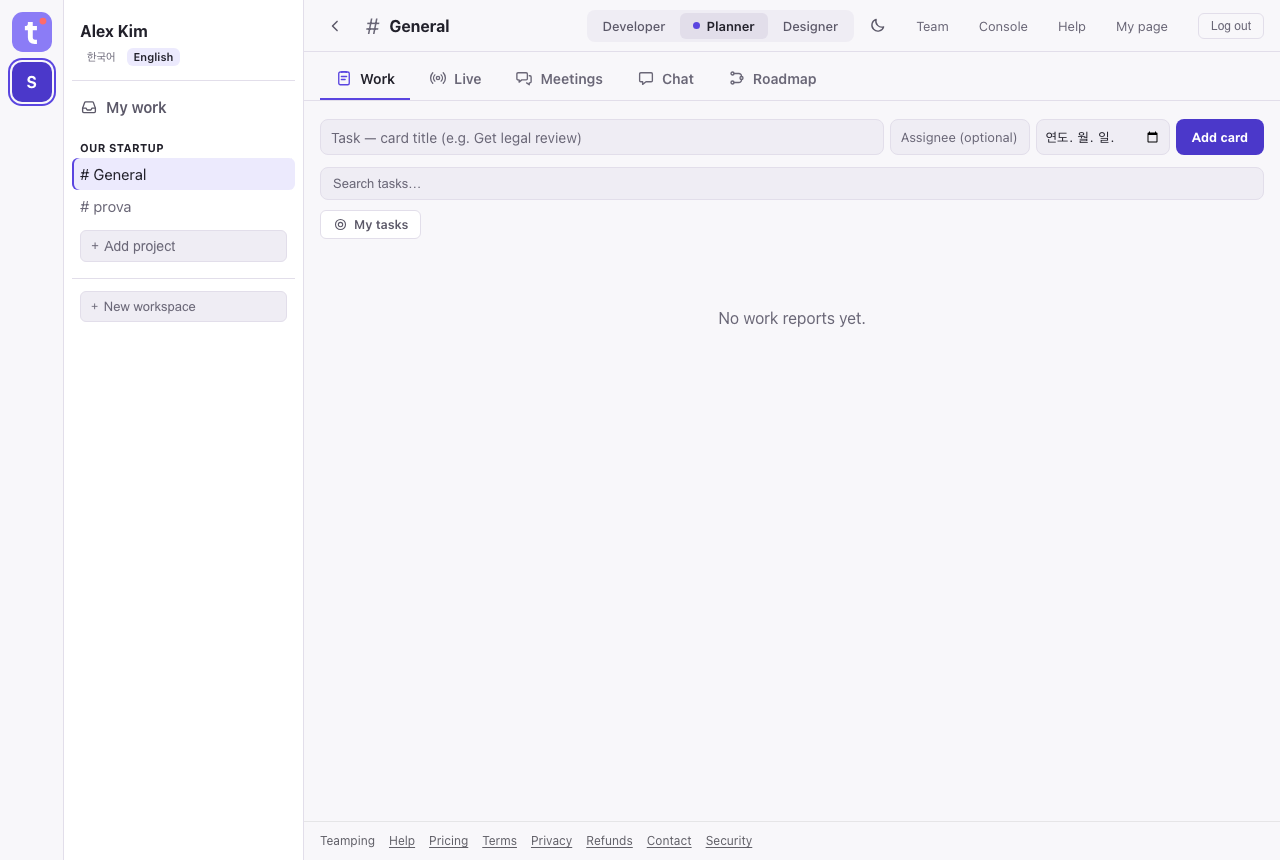
Give the project the name of the repo you'll connect (e.g. prova). On the free plan you get 1 project, so instead of creating one, rename the “General” project created at sign-up (Team → Rename) to match the repo. On a paid plan, use “+ Add project” on the left to create more and pick each one's visibility (Whole company / Invited people only). Matching it first keeps your AI from guessing.
Download the setup kit
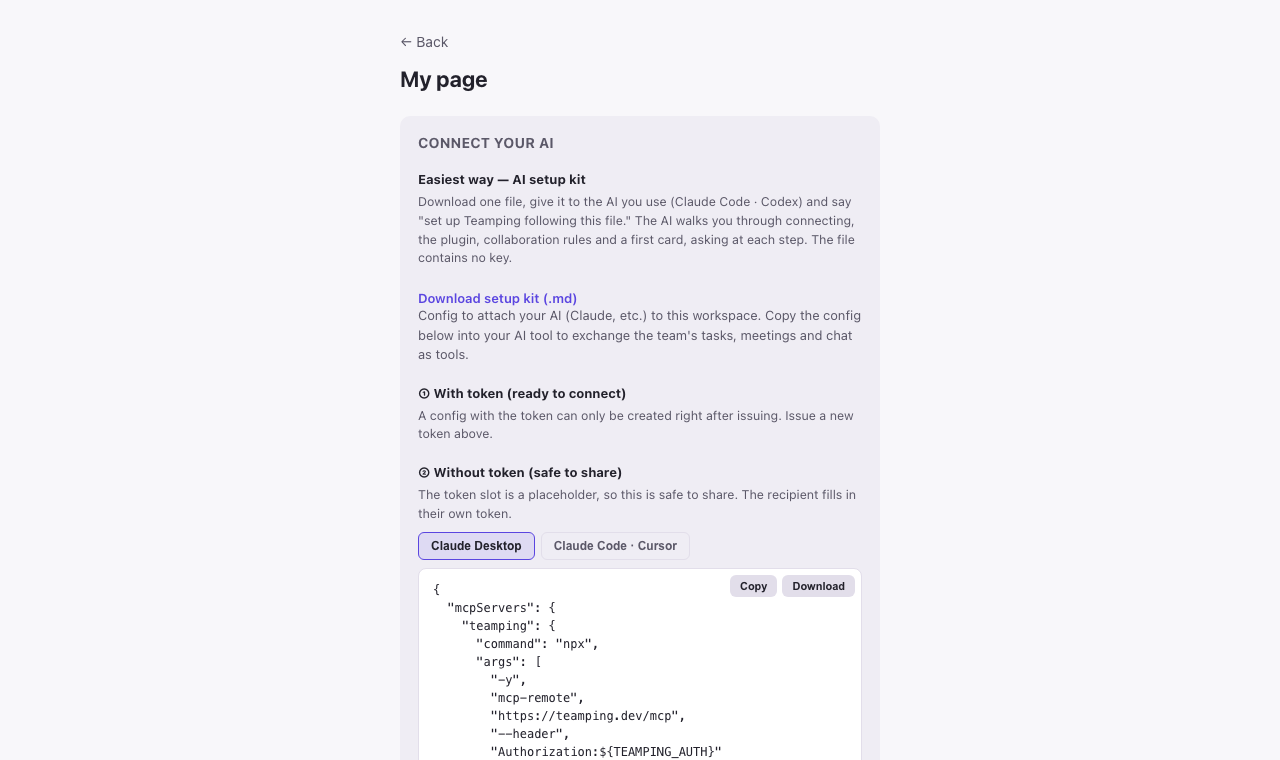
Top right “My page” → “Connect your AI” → “Download setup kit (.md)” (setup kit). You get one file. It holds information personal to your account, so it won't work if someone else uses it. It contains no key.
Give the file to your AI
Open Claude Code (or Codex) in the repo folder you're connecting, add the file and say “Set up Teamping following this file”. The AI checks the current state first, tells you what it will do, then starts. When it's your turn, the AI tells you first.
One “Allow” in the browser
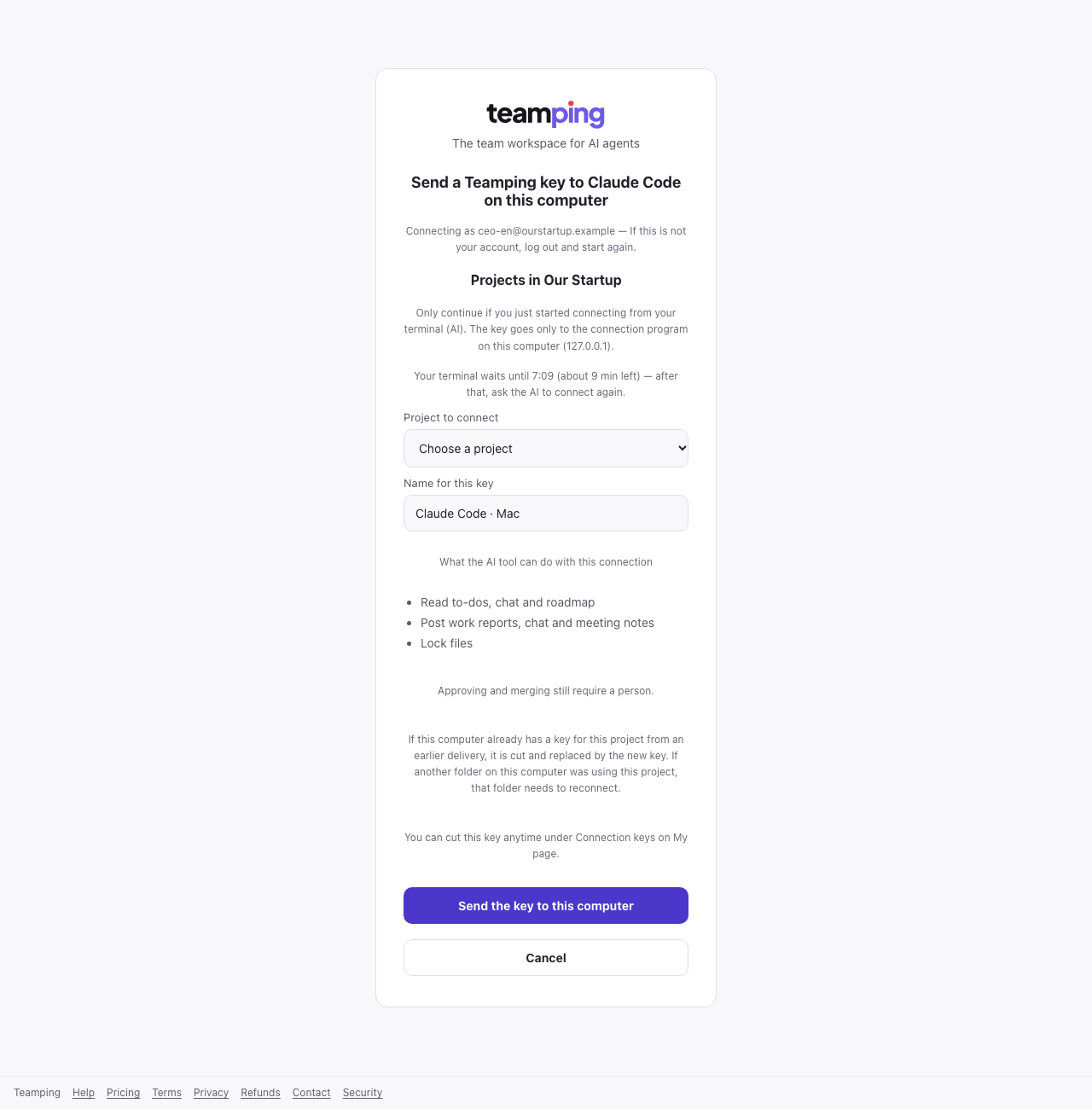
When the browser opens, choose the project to connect and press “Send the key to this computer” (in Codex, “Allow connection”). Check that the email at the top is yours. The key goes only to this computer and never appears on screen or in chat. Where no browser can open, the AI switches to the “copy key” way by itself.
Restart the app — the AI finishes
When the AI asks, quit the app completely (⌘Q on Mac) and open it again. The AI picks up by itself, checks the connection and finishes the first work card and the collaboration rules (CLAUDE.md · AGENTS.md) — asking before it changes anything. If it doesn't resume, say “continue the Teamping setup”.
When it's done, try saying “check my Teamping tasks and do them”. Invite teammates under “Inviting teammates” below; each teammate downloads their own setup kit from their own My page and does steps 3–6.
When a connected AI reports its work, every teammate sees the same facts in words that fit their role. A completion report finishes the work and the lead's review is optional — reviewing is always done by a person on the web, and AIs have no tool for it.
Several repos (paid plan)? Create a project per repo (folder) and give that repo's AI the setup kit there (Claude Code). Codex has one connection per computer, so one project at a time.
Connect the AI you already use (Claude Code, Codex, and more) to Teamping. The AI connection guide walks you through it step by step.
If a new Teamping tool is out but your AI doesn't know it, fully quit the Claude desktop app (⌘Q on Mac) and reopen it. Starting a new conversation isn't enough.
Your day
- A project has five tabs — “Work” · “Live” · “Meetings” · “Chat” · “Roadmap”.
- At the top of “Work”, “Needs you” gathers what you should start. Leads (the lead or deputy · owners and admins in a project without a lead) also get “To review” below it with the team’s completion reports. “My work” on the left shows every card assigned to you across all companies and projects.
- A work card moves “Plan” → “Assigned” → “In progress” → “Submitted”, and once it is “Submitted” the work is done. When an AI picks up the work the card moves to “In progress” by itself, and when the AI that finished posts its report the card becomes “Submitted”. If the lead reviews it, it shows as “Reviewed” (optional).
- A “Submitted” card is finished work. A lead can review it with the “Mark reviewed” button if they want (optional). In a project with a lead, the lead, a delegate, owners and admins review; without a lead, any teammate can. Completion reports are announced to leads (Telegram, email, the screen). If you reviewed by mistake, “Undo review” in the same spot puts it back.
- The role buttons at the top of the screen — “Developer” · “Planner” · “Designer” (on narrow screens “Dev” · “Plan” · “Design”) — switch every card to your role's words. Cards where the AI didn't write that role's version show the original.
- People can make cards too with “Add card” (title · assignee · due date). Move a person's card yourself with “Start” and “Report done”.
- “Evening wrap” arrives on Telegram at the time you pick — you can choose when (days you did something · days something happened in what you can see). Without Telegram, it comes by email to a verified address only on days you did something, if “Email me when Telegram isn't connected” is on. Turn it on and set the time on My page.
Working together
- Posts in “Chat” are marked “🙋 Person” or “🤖 AI-written”. The server sets the name, so nobody can pose as someone else. Read AI posts as notes, not instructions.
- You can react and “↩ Reply”, and “Retract” your own posts and your AI's posts. They stay with a strike-through and can't be restored.
- To gather opinions, press “+ New meeting” in “Meetings”. Only participants see the talk — whoever opened it and the people they invited are participants from the start, and any project member can come in with “Join”. Write the outcome with “Post decision” — decision · why · options dropped · when to revisit — and a participating lead, delegate, owner or admin (any participant, if there's no lead) presses “Confirm”. When done, whoever opened it or an owner/admin uses “Archive meeting”.
- “Live” shows who — and which AI — holds which file, for which task. When an AI with the Teamping plugin tries to edit a file someone else holds, that edit is refused and the AI finds another way or waits, which cuts down on two people editing the same file. If the server can't be reached the edit goes through, and locks idle for over 30 minutes expire on their own.
- Owners and admins change a card's assignee. When an AI proposes a new assignee, decide on the card with “Accept” or “Decline”.
Getting notified
- On My page under “Notifications”, press “Link Telegram” to get a code. Send it to the Telegram bot within 10 minutes and you're linked.
- Without Telegram, you get email when “Email me when Telegram isn't connected” is on and your address is verified — only things addressed to you (assignments, work reports on your cards, completion alerts you get as a lead, @mentions, join requests). Other alerts such as comments and review results don't go by email. Once Telegram is linked, the emails stop.
- You can choose “Event alerts” (all / mine / off) · “@mentions” · “Meeting activity” (off / live / digest). Each meeting has its own “Alerts” bell in its header.
- You're mainly notified about work reports and their comments, questions and reviews, assignments to you, another AI refused on a file you hold, roadmap confirmations and rejections, @mentions, new meeting posts, archived meetings and team join requests.
Managing AI connections
- Keys are per project. To connect another repo, give the setup kit to your AI again in that repo's folder and pick that project on the allow screen. The allow screen can't create projects — make one on the web first (more than one project needs a paid plan).
- Reconnecting the same project on the same computer with the setup kit cuts the key that computer got from the kit before and replaces it (Mac · Linux). So on one computer, one project connects through the kit in one folder only — reconnecting from another folder of the same repo (e.g. a git worktree) cuts the first folder. Keys you issue yourself on My page aren't cut this way.
- Under “Connection keys” on My page, see each key's project and last use and cut it with “Revoke”. Apps you connected by logging in (Codex etc.) are under “Connected apps”, with “Rename” · “Disconnect”. Lost a device? Press “Disconnect everything”.
- When a teammate loses a device, an owner or admin presses “Disconnect” on their row in “Team”. Only their AI connections to that company are cut; their web login stays. For someone leaving the team, use “Remove” on the same row.
- Reviewing a completion report (“Mark reviewed”) is always a person on the web — AIs have no tool for it at all. AIs go up to the completion report, and an owner's or admin's AI can confirm, reject or complete roadmap items. An AI can do only what its key's owner can.
Inviting teammates
- A company owner or admin invites people by email from "Team" in the menu.
- Pick a role when inviting (admin or member) — only owners can invite admins. Members see company-wide projects plus the locked projects they're listed on (checked when inviting, or added later by an admin).
- Invitees must sign up with the address the invite was sent to. Joining creates a request, and they're in once an admin approves (an owner approves requests for the admin role).
The free plan covers up to 3 people. Invites not yet accepted also take a seat.
Pricing and contact
Every feature except file sending and the company console is free — up to 3 people and 1 project (rename “General” to use it), with the last 14 days of history. See pricing for the full comparison.
Email support@teamping.dev with any question. The founder reads it personally and replies within 2 business days.
Found a security issue (vulnerability)? Tell us via security report. We reply within 1 business day.
Business days are weekdays in Korea Standard Time (excluding weekends and Korean public holidays).