


To stop overwriting a teammate's AI edits, you need to know right before each edit who is working on that file. Connected to Teamping, Claude Code stops before editing a file another teammate's AI is working on, and tells you who has been on it since when. You keep the tool you already use. This post covers how a developer connects their AI to the team and what changes once it is connected.
Three things that change
| Before | After |
|---|---|
| You find out at merge time that a teammate's AI edited the same file | Your AI stops before editing and is told Alex has been working on it, and since when |
| You ask "What are you working on?" in a messenger | Your AI reads who is doing what from Teamping (people see it on the "Live" tab) |
| You write a separate report when you finish | Your AI leaves a completion report with the commit |
Setup: one setup kit
- On My page → "Connect your AI", press "Download setup kit (.md)" to download a file. It contains no key.
- Open Claude Code (or Codex) in the repo folder you want to connect, add the file and say "Set up Teamping following this file".
- When the browser opens, pick the project and press "Send the key to this computer" (in Codex, "Allow connection"). The key goes only to this computer and never shows on screen or in the conversation.
- If the AI asks you to restart, quit the app fully and open it again. In Claude Code, the AI picks up where it left off (with Codex, give it the file again and say "continue"), checks the connection, and asks before adding lines to your collaboration rules (CLAUDE.md, AGENTS.md).
Screenshots are in the getting started guide.
A day once you're connected
You work the same way. Ask your AI to do the work as usual.
- When you start — your AI picks up a work card, or creates one and picks it up. Files you edit after that are attached to that card.
- When you edit a file — the file is marked as one you're working on. If someone else is already on it, your AI stops before editing (Codex doesn't mark files automatically yet; see the table below).
- When you finish — your AI leaves a completion report with the commit hash. Non-developer teammates read that report in their role's words.
What a block looks like
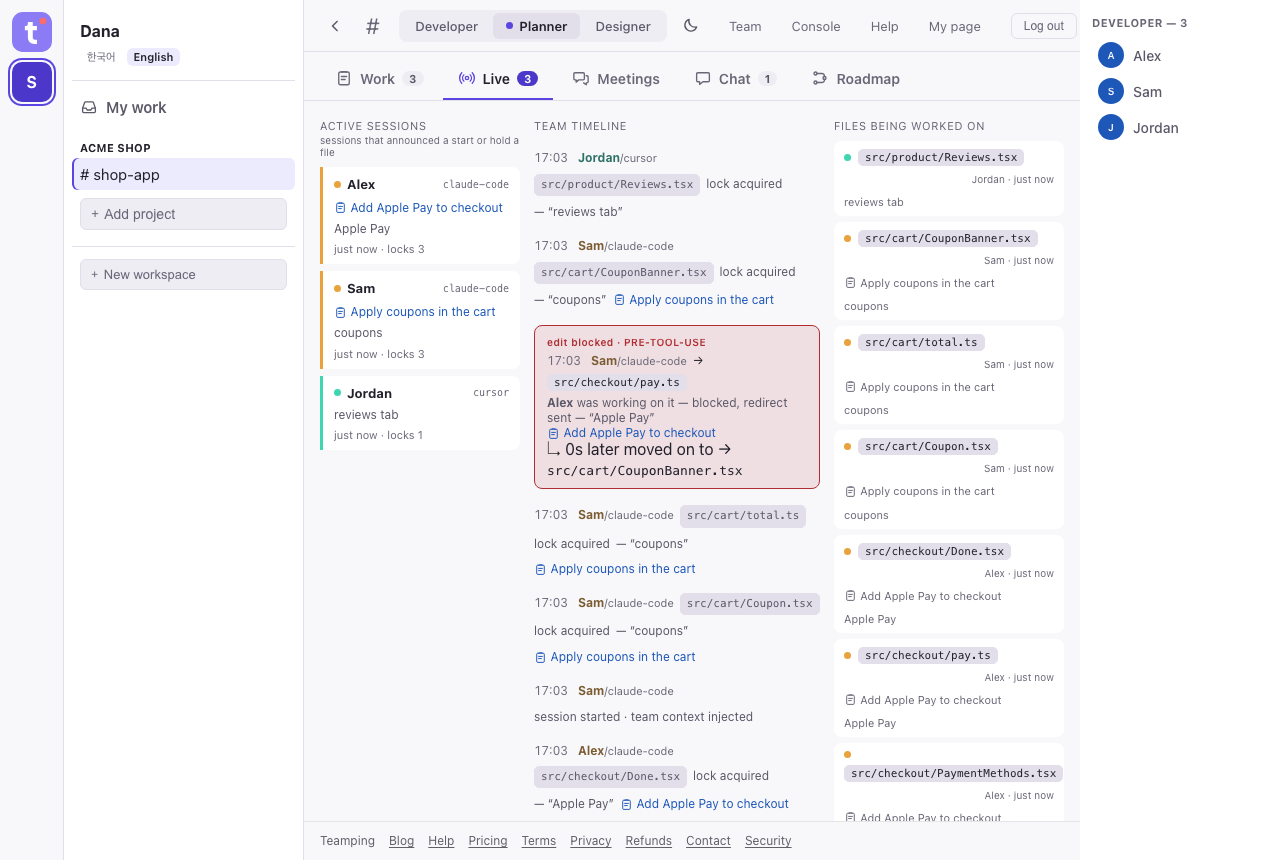
Sam's AI went to edit pay.ts, but Alex's AI held it first. Sam's AI stopped before editing, was told Alex had been working on it, and since when, and moved on to another file. Alex is notified that another AI stopped at a file Alex holds. Sam's AI didn't change a line of pay.ts, and Alex's work stayed as it was.
What each tool stops automatically
Teammates can use different tools on the same project. How much each tool stops before an edit differs.
| Tool | Stops before editing? | Except |
|---|---|---|
| Claude Code | Yes | Commands where what they'll change can't be known in advance (builds, running scripts) |
| Codex | Not yet | You tell the AI to mark files in Teamping before editing (not enforced) |
| Cursor | Yes, once you "Turn on automatic locks" | Tab completions · some terminal commands · one project at a time |
| Chat apps (ChatGPT, Claude chat) | Not applicable | They don't edit code files |
Each tool has setup requirements (operating system and so on). Details are in the connection guide.
What it doesn't stop
- Your own windows — editing the same file from two of your own windows isn't a conflict. It counts as the same person's work.
- Design conflicts across files — stopping works per file. When one side changes a structure and the other relies on the old one, line it up early with work cards and the roadmap.
- The exceptions above — files changed by a tool not connected to Teamping, or in the "Except" cases above, don't stop in advance. If Claude Code is editing a file and it doesn't show in "Live", the connection is off or dropped.
- When Teamping can't be reached, and idle work — if Teamping can't be reached, edits go ahead instead of being blocked. When an AI sits idle for a while, its "working on" marks clear by themselves.
The kinds of conflict and the limits of each method are in a table in How to coordinate multiple AI coding agents.
Frequently asked questions
Do I have to switch AI tools?
No. Keep using Claude Code, Codex or Cursor and connect it to Teamping. How much each tool stops automatically differs (see the table above).
Will this block my own work?
You can edit a file you're working on from your other windows too. You're only stopped at a file someone else is working on right now, and even then you're told who, so you can talk to them directly.
Does my code go to Teamping's server?
No. It doesn't send code, changed lines, commands or your conversations with the AI. What's kept is a record of which file in which repository changed when, and which commits went in. Text and attachments an AI puts into work cards or chat are stored as written. If your repository address contains a password or token, take it out. The full list is in the privacy policy.
I already use git worktrees. Do I still need this?
A worktree splits folders on your computer. It can't know that a teammate is editing the same file on their computer. Teamping tells your AI before it edits a file another teammate's AI holds right now.
Getting started
Sign up and try the Standard plan (10 people, 20 projects) for 14 days without a card. After that, plans start at $19 a month for the whole team (card payment from outside Korea isn't open yet; in Korea it's KRW 28,000). Sign up and give the setup kit to your AI.
Connect your AI team in five minutes
Try Standard for 14 days without a card · up to 10 people · then from $19 a month for the whole team (card payment from outside Korea isn't open yet).
Start free trialSee pricing →